Showing posts with label wii. Show all posts
Tuesday, August 16, 2016
Nintendo Wii Classic Controller as Wired USB Gamepad
Wii Classic Controller as a USB-based HID compatible gamepad via Teensy 2.0.
Hardware setup is four connections:
• Orange wire (Wii controller connection top left) to Teensy SDA pin (Teensy 2.0 pin 6)
• Green wire (Wii controller connection bottom right) to Teensy SCL pin (Teensy 2.0 pin 5)
• Blue wire (Wii controller connection bottom left) to Teensy ground
• Red wire (Wii controller connection top right) to Teensy VCC
Download code here: http://milkcrate.com.au/_other/downloads/arduino/WiiClassicUSB.ino
Labels:
arduino,
emulation,
teensy,
videogames,
wii
Monday, April 28, 2014
Saturday, April 26, 2014
THIS IS HOW PEOPLE BREAK
Download on SoundCloud: https://soundcloud.com/little-scale/this-is-how-poeple-break
Wednesday, April 23, 2014
MIDI Controller Using Wired Wii Nunchuck
Made with a Teensy 2.0 in the Arduino IDE using the Teensyduino add-on.
The hardware set up is simple - the Nunchuck accessory end has four connections (ground, 5V, data, clock). These should be connected to Teensy power and digital pins 5 and 6 - see below for a photo.
The Teensy pinout can be found here. The Teensy should be set to MIDI mode in the Arduino IDE under Tools > MIDI Type.
The code can be downloaded here: http://milkcrate.com.au/_other/downloads/arduino/chuckMIDI/chuckMIDI.ino
Tuesday, April 22, 2014
SEGA Gamepad Emulation Using Wired Wii Nunchuck
Made with a Teensy 2.0 in the Arduino IDE using the Teensyduino add-on.
The hardware set up is simple - the Nunchuck accessory end has four connections (ground, 5V, data, clock). These should be connected to Teensy power and digital pins 5 and 6 - see below for a photo.
The Teensy pinout can be found here. The Teensy should be set to joystick mode in the Arduino IDE under Tools > USB Type.
The code can be downloaded here: http://milkcrate.com.au/_other/downloads/arduino/chuckJoy/chuckJoy.ino
Monday, December 09, 2013
Tuesday, September 27, 2011
WiiMote Gesture Looper Max/MSP Patch
DownloadMax patch: http://milkcrate.com.au/_other/downloads/max_patches/gesture_looper/GestureLooper.maxpat
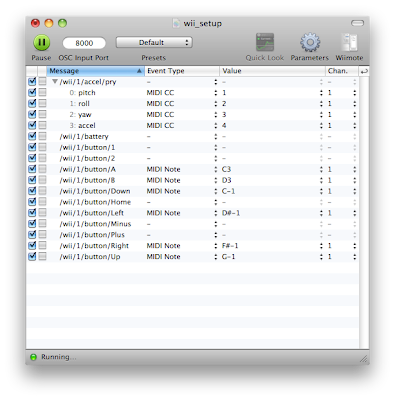
OSCulator mapping: http://milkcrate.com.au/_other/downloads/max_patches/gesture_looper/wii_setup.oscd
Usage
+ Launch OSCulator
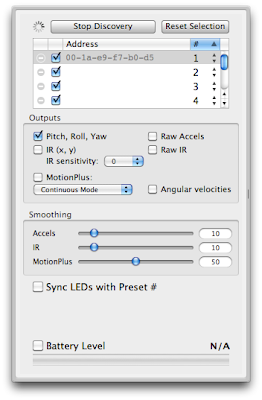
+ Synchronise the WiiMote to OSCulator
+ Setup mapping in OSCulator as below
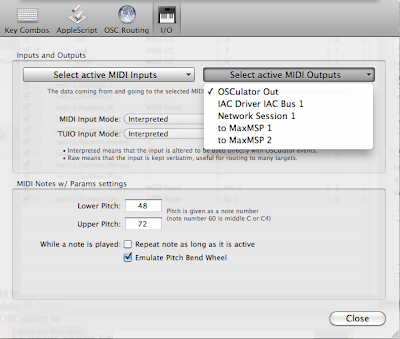
+ Go to View > Parameters > I/O Tab > Select Active MIDI Outputs > OSCulator Out
+ Launch the Max/MSP patch
+ Set the MIDI Input device to OSCulator Out
+ Set the MIDI Output device to whichever destination you would prefer
+ Set the tempo in the transport section
+ Press the toggle in the transport section to activate the looper
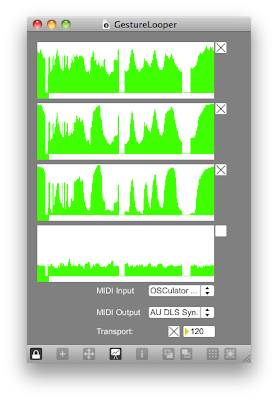
+ The four phrases / loops represent: pitch, roll, yaw, accel of the WiiMote
+ Each toggle next to each phrase activates / deactivates that particular parameter
+ Pitch is mapped to the selected MIDI output along MIDI CC #1 on channel 1
+ Roll is mapped to the selected MIDI output along MIDI CC #2 on channel 1
+ Yaw is mapped to the selected MIDI output along MIDI CC #3 on channel 1
+ Accel is mapped to the selected MIDI output along MIDI CC #4 on channel 1
+ Hold down the B button on the WiiMote to turn recording on.
+ When recording, data will be recorded into each parameter loop
+ Release the B button on the WiiMote to turn playback on.
+ When playing back, data will be streamed from each parameter to the selected MIDI output
OSCulator Setup
Monday, September 26, 2011
WiiMote Gesture Looper
The B button on the Wii remote records gesture data into a 2-bar phrase. Otherwise, whatever data is in the phrase is automatically played back and looped continuously. This data can then be used to control various parameters - in this case, filter frequency, resonance, delay times, bit crushing, compression, waveform etc.


Labels:
ableton live,
massive,
max/msp,
wii
Subscribe to:
Posts (Atom)


